By default, data written inside a container lives in its writable layer and is lost when the container is removed. A named volume persists data on the host and survives container removal — the standard way to keep stateful data such as database files.
Start a MariaDB container with a named volume attached, using --rm so the container is auto-removed on stop:
With root access, you can see the actual database files on the host at the volume’s mountpoint:
$ sudo ls "/var/lib/docker/volumes/mariadb-data/_data"aria_log.00000001 ddl_recovery.log ibdata1 ibtmp1 multi-master.info performance_schema tc.log undo002aria_log_control ib_buffer_pool ib_logfile0 mariadb_upgrade_info mysql sys undo001 undo003
Stop the container — the container is removed, but the volume mariadb-data remains on disk:
docker stop my-mariadb
Volume vs. bind mount
A named volume (--volume mariadb-data:/var/lib/mysql) is managed by Docker and works on any host. A bind mount (--volume /host/path:/container/path) maps an arbitrary host directory and is more common in development. Prefer named volumes for database data.
Docker networking
Legacy link mode
The classic (now deprecated) way of connecting containers is the --link flag, which injects the target container’s entry into the source container’s /etc/hosts.
Start a Redis container and store a key in it:
# start a Redis (NoSQL) containerdocker run -d --name redis-master --rm redis:alpine
$ docker exec -it redis-master redis-cli[IP_ADDRESS]:6379> keys *(empty array)[IP_ADDRESS]:6379> set temperature 22.6OK[IP_ADDRESS]:6379> get temperature"22.6"[IP_ADDRESS]:6379> exit
Start a second Redis container linked to the first:
docker run -d --name redis-test --link redis-master --rm redis:alpine
$ docker psCONTAINER ID IMAGE COMMAND CREATED STATUS PORTS NAMES268466808cef redis:alpine "docker-entrypoint.s…" 2 minutes ago Up 2 minutes 6379/tcp redis-test976f538fe887 redis:alpine "docker-entrypoint.s…" 3 minutes ago Up 3 minutes 6379/tcp redis-master
Inspect the /etc/hosts file inside the test container — note the redis-master entry added by --link:
Connect to the master by hostname and read the key stored earlier:
$ redis-cli -h redis-masterredis-master:6379> keys *1) "temperature"redis-master:6379> get temperature"22.6"redis-master:6379> exit
docker stop redis-master redis-test
Deprecated feature
--link is a legacy feature and should not be used in new deployments. Docker’s embedded DNS on user-defined networks (see next section) provides the same name-based resolution without a fixed startup order or shared network namespace. It is shown here only because you may encounter it in older environments.
User-defined networks
On a user-defined bridge network, containers reach each other by container name through Docker’s embedded DNS server. This is the recommended approach.
# list existing networks$ docker network ls# create an isolated bridge network$ docker network create redis-network# start two containers on the same network$ docker run -d --name redis-1 --rm --net redis-network redis:alpine$ docker run -d --name redis-2 --rm --net redis-network redis:alpine
Test name resolution and cross-container connectivity:
Containers on the defaultbridge network cannot resolve each other by name — only by legacy --link. Name resolution works automatically only on user-defined networks like redis-network above.
Exercise: webcounter
In this exercise, you will deploy a multi-container application using Docker networking. The application consists of a web counter service that tracks page visits using a Redis cache as the backend. Containers communicate through an isolated Docker network.
Use the image cfreire70/webcounter for the web counter container
The web counter container exposes port 5000 internally, mapped to 8080 on the host
Set the environment variable REDIS_URL=redis-cache to point the app to Redis
Use the official redis:alpine image for the cache container
Name the Redis container redis-cache to match the REDIS_URL value
Attach both containers to the same network (webcounter-net) so DNS resolution works
Access the web counter at http://localhost:8080 once both containers are running
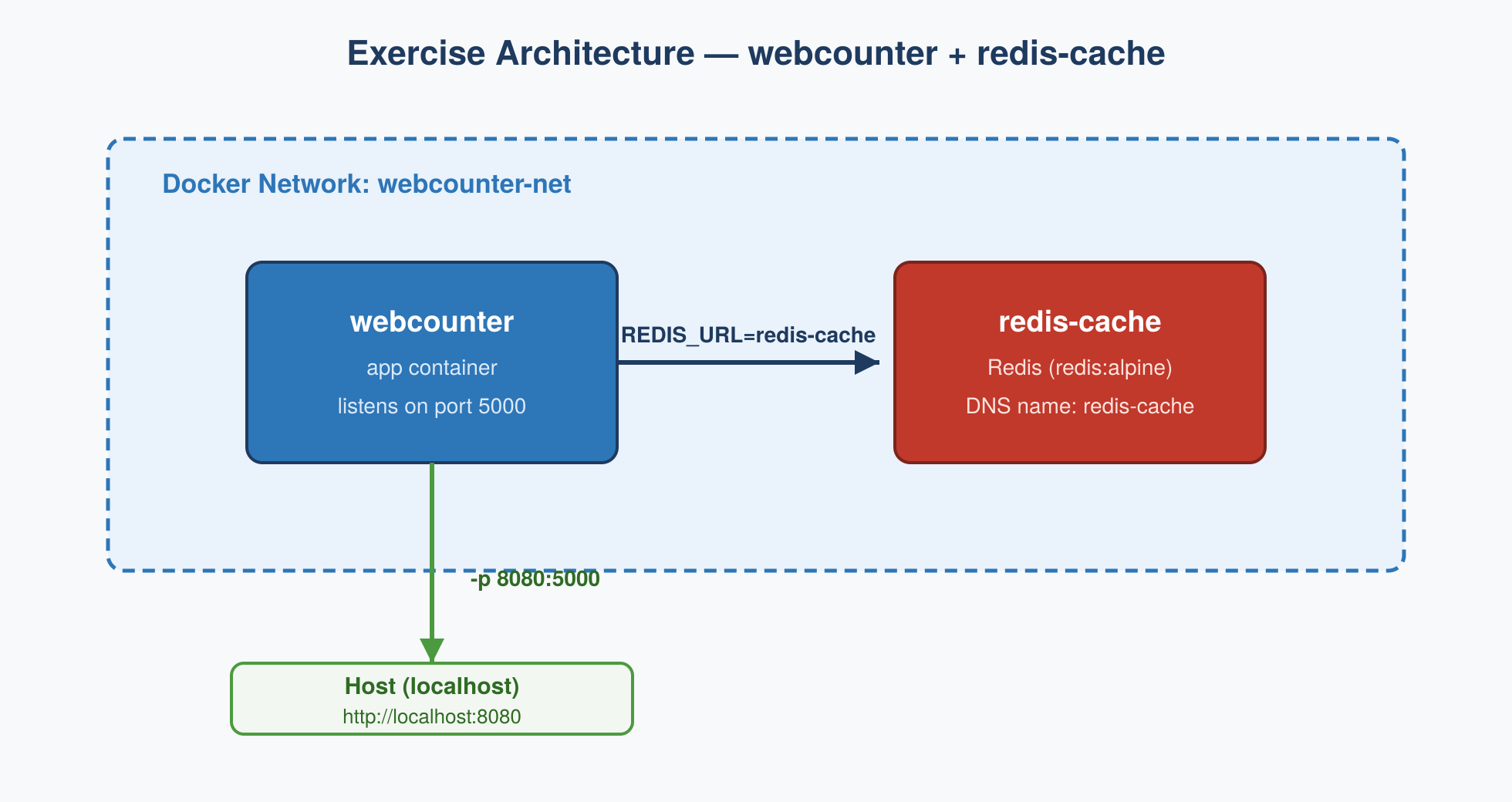
Exercise Architecture
Two containers on the webcounter-net bridge network: the webcounter app (port 5000) connects to redis-cache by DNS name, and port 8080 is published on the host.
Exercise Solution
Step 1 — Create a Docker network
Create an isolated bridge network so both containers can communicate by name.
docker network create webcounter-net
Expected output:
a3f2c1d4e5b6... (a unique network ID)
Step 2 — Run the web counter container
Start the web counter application, connecting it to the network and exposing port 8080 on the host.
Unable to find image 'redis:alpine' locallyalpine: Pulling from library/redis...Status: Downloaded newer image for redis:alpine9e4b7c8f1a2d... (container ID)
Step 4 — Verification
docker ps
Expected output:
CONTAINER ID IMAGE COMMAND CREATED STATUS PORTS NAMES9e4b7c8f1a2d redis:alpine "docker-entrypoint.s…" 10 seconds ago Up 9 seconds redis-cache7f3a1b2c4d5e cfreire70/webcounter "python app.py" 30 seconds ago Up 29 seconds [IP_ADDRESS]:8080->5000/tcp webcounter
Step 5 — Test the application
Open your browser or use curl:
curl http://localhost:8080
Expected output (example):
This page has been visited 1 times.
Each refresh increments the counter — proof that Redis is storing the visit count.
Step 6 — Inspect the network
docker network inspect webcounter-net
You should see both webcounter and redis-cache listed under Containers.
Troubleshooting
Symptom
Possible cause
Fix
curl returns connection refused
webcounter container not running
Check docker ps and docker logs webcounter
Counter not incrementing
Redis not reachable
Verify both containers are on the same network
Port already in use
Another process uses 8080
Change -p 9090:5000 and use port 9090
Image pull fails
No internet / wrong image name
Check connectivity and image name
View container logs:
docker logs webcounterdocker logs redis-cache
Cleanup
Destructive commands
The following commands remove containers, networks and images. Any data not persisted in a volume is lost.
git clone https://gitlab.com/form-cfreire/webcounter.gitcd webcounter# build the image from the Dockerfile in the current directorydocker build -t webcounter .
Run locally
# start the Redis dependencydocker run -d --name redis --rm redis# run the web counter, linking to Redis and publishing port 80docker run -d --rm -p 8080:5000 --name webcounter --link redis -e REDIS_URL=redis webcounter
Deprecated feature
--link is deprecated; use a user-defined network instead (see 02-docker-builds):
docker rm -f forcibly stops and removes the containers.
docker rm -f webcounter redis
Publish to Docker Hub
# tag the image with your Docker Hub usernamedocker build <docker_id>/webcounter .# authenticatedocker login -u <docker_id># push the image to the registrydocker push <docker_id>/webcounter