Table of Contents
- Connection to Jenkins
- View system information
- View Jenkins Log
- Shell Script Example (Freestyle Project)
- Post-Build Actions
- Jenkins Quiz
Jenkins runtime (on standalone)
docker network create jenkins-net

docker run \
--name jenkins \
--restart=on-failure \
--detach \
--network jenkins-net \
--env DOCKER_HOST=tcp://docker:2376 \
--env DOCKER_CERT_PATH=/certs/client \
--env DOCKER_TLS_VERIFY=1 \
--publish 8080:8080 \
--publish 50000:50000 \
--volume jenkins-data:/var/jenkins_home \
--volume jenkins-docker-certs:/certs/client:ro \
jenkins/jenkins:latest-jdk21
Connection to Jenkins
http://[ip-address]:8080
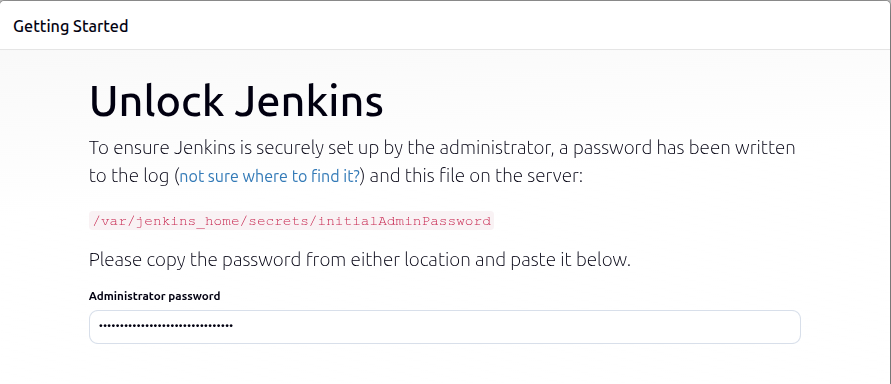
Get initial administrator password
docker exec -it jenkins cat \
	/var/jenkins_home/secrets/initialAdminPassword
Start workflow
-
Install sugected plugins
-
Don’t create Admin User
skip and continue -
Confirm url
-
Update Plugins:
Gerir Jenkins >> Gerir Plugins -
Restart jenkins after download
-
Installing English Locale:
Gerir Jenkins >> Gerir Plugins >> Disponiveis >> Local -
Gerir Jenkins >> Appearance
Default Language: en_US
[x] Ignore browser preference and force this language to all users -
TimeZone is in User Configuration
Dashboard >> admin >> Preferences >> TimeZone >> Europe/Lisbon
View system information
Manage Jenkins >> System information
- java version
- os.name / os.version
- user.language
- user.timezone
- Memory usage
- Jenkins version
View Jenkins Log
Manage Jenkins >> System Log
Shell Script Example (Freestyle Project)
A slightly more practical example that prints system info and lists files in the workspace.
Create a new Freestyle project: Dashboard > Create Job > Freestyle project (shell-script-demo)
Build Step: Add build step > Execute shell
#!/bin/bash

# --- System Info ---
echo "================================"
echo "  Jenkins Shell Script Demo"
echo "================================"
echo "Hostname  : $(hostname)"
echo "Date      : $(date)"
echo "User      : $(whoami)"
echo "Shell     : $SHELL"
echo "PWD       : $PWD"
echo "================================"

# --- List workspace contents ---
echo ""
echo "Workspace contents:"
ls -lh

# --- Simple loop ---
echo ""
echo "Counting from 1 to 5:"
for i in $(seq 1 5); do
    echo "  Step $i"
done

echo ""
echo "Build finished successfully!"
Build Now and check the console output to see the results.
Post-Build Actions
Post-build actions run after the build steps complete, regardless of the build result (success, failure, etc.). They are configured in the same job configuration page under the Post-build Actions section.
Add a Post-Build Action
- Open the job configuration:
Dashboard > [job name] > Configure - Scroll down to the Post-build Actions section
- Click Add post-build action
Common Post-Build Actions
Archive the Artifacts
Saves build output files so they can be downloaded later.
- Select
Archive the artifacts - Files to archive:
**(all files) or a specific pattern liketarget/*.jar - Optional: check Compress artifacts to reduce storage
Edit Build Information
Lets you manually set the display name for a build.
- Select
Edit build information - Set a custom name like
My Build #${BUILD_NUMBER}
Send build notifications
Sends email or chat notifications based on build status.
- Select
Editable Email NotificationorSlack Notification - Configure recipients and conditions (e.g. only on failure, always, etc.)
Archive JUnit test results
Parses JUnit XML test reports and displays results on the build page.
- Select
Archive JUnit test results - Test report XMLs:
**/TEST-*.xml
Example: Archive + Email on Failure
Post-build Actions:
  - Archive the artifacts:
      Files to archive: output/**
  - Editable Email Notification:
      Recipients: team@example.com
      Trigger: Failure
Jenkins Quiz
Q1. What is Jenkins?
- A continuous integration product
- A continuous delivery product
Q2. What makes Jenkins extensible?
- Plugins
- Open Source Distribution
Q3. How do we get system information on the Jenkins dashboard?
- Visit http://<ip_address>:8080/view/all/builds
- Visit http://<ip_address>:8080/manage/systemInfo
Q4. How do we change global settings for configuration on the Jenkins dashboard?
- Click on the Manage Jenkins link on the dashboard
- Click on the Credentials link on the dashboard