Table of Contents
- Working on GitHub
- Working with private repository
- Undoing things
- Unstaging a Staged File
- Unmodifying a Modified File
- Git remote
- Tagging
Working on GitHub
1.Create a github repository git_course_example
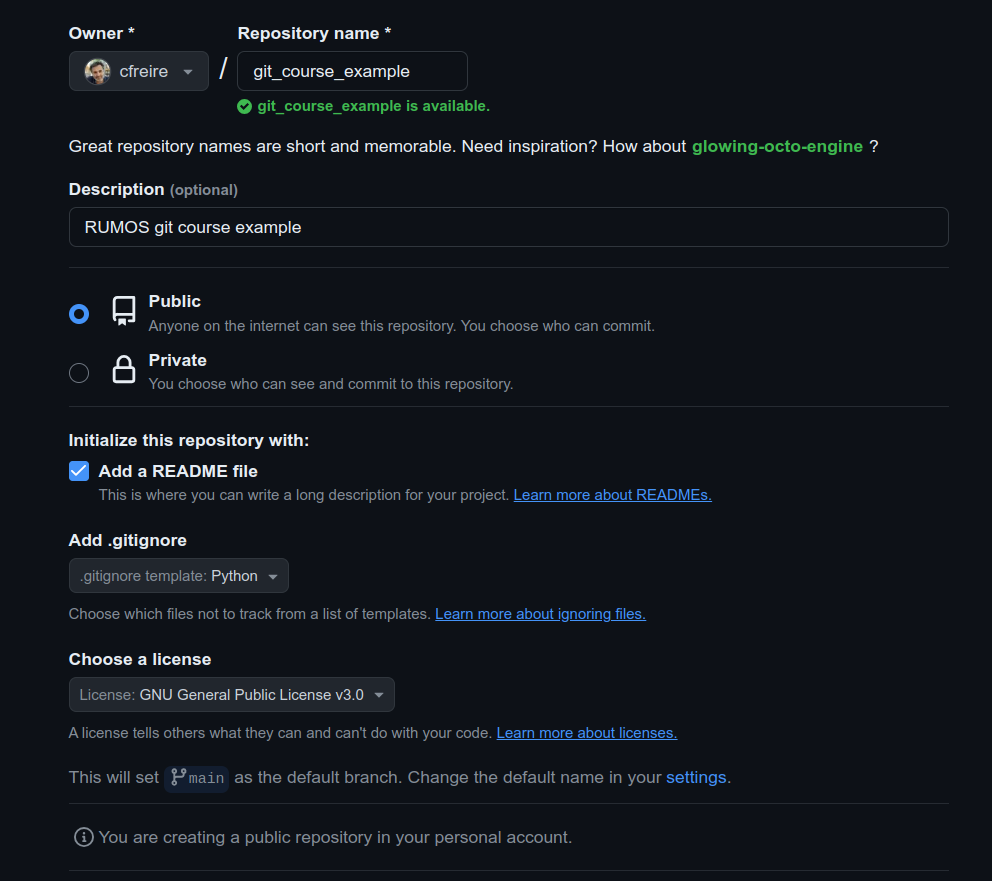
- Clone by ssh on vscode
- Add
version.py - Change README.md
- Commit changes
- Sync changes
- Verify hash (local and remote)
- Make a change to remote
vension.py - On VSCODE goto git and “Pull, Push” » Sync
- delete
version.py - sync changes
- Verify delete on github
- View
git log -p - View
git log --oneline - Change README on both sides diferente lines and commit
 * branch            main       -> FETCH_HEAD
hint: You have divergent branches and need to specify how to reconcile them.
hint: You can do so by running one of the following commands sometime before
hint: your next pull:
hint:
hint:   git config pull.rebase false  # merge (the default strategy)
hint:   git config pull.rebase true   # rebase
hint:   git config pull.ff only       # fast-forward only
hint:
hint: You can replace "git config" with "git config --global" to set a default
hint: preference for all repositories. You can also pass --rebase, --no-rebase,
hint: or --ff-only on the command line to override the configured default per
hint: invocation.
fatal: Need to specify how to reconcile divergent branches.
- Do a git pull (rebase) [Merge]
# Git Course Example

> by César Freire

RUMOS git course example

2024-04-22 César Freire- Change again on both sides the same line
- Try to sync changes with error.
- View diferences
- Do a git pull (rebase) again
Git Course Example
> by César Bento Freire

RUMOS git course example

<<<<<<< HEAD
Changes are remote
=======

Changes are local
>>>>>>> 40b6bfa (Changes are local)
- Sync changes
- Instpect VSCODE timeline
Working with private repository
git config --global user.email "cesar.freire@training.rumos.pt"
git config --global user.name "Cesar Freire"
git config --global init.defaultBranch main

sudo mkdir /mnt/cfreire-project.git
sudo chmod 777 /mnt/cfreire-project.git/
sudo chown redhat:redhat /mnt/cfreire-project.git/
cd /mnt/cfreire-project.git/
git init --bare

cd
mkdir my-project
git init
git add .
git commit -m "Initial commit"
git remote add origin ssh://<server>/mnt/cfreire-project.git
git push origin main
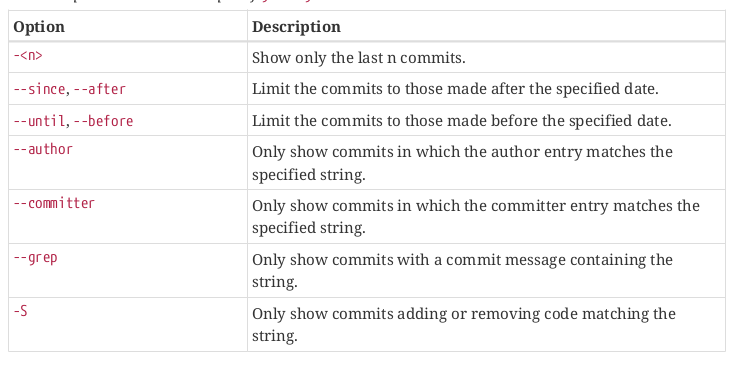
Investigate log
git log --pretty=format:"%h - %an, %ar : %s"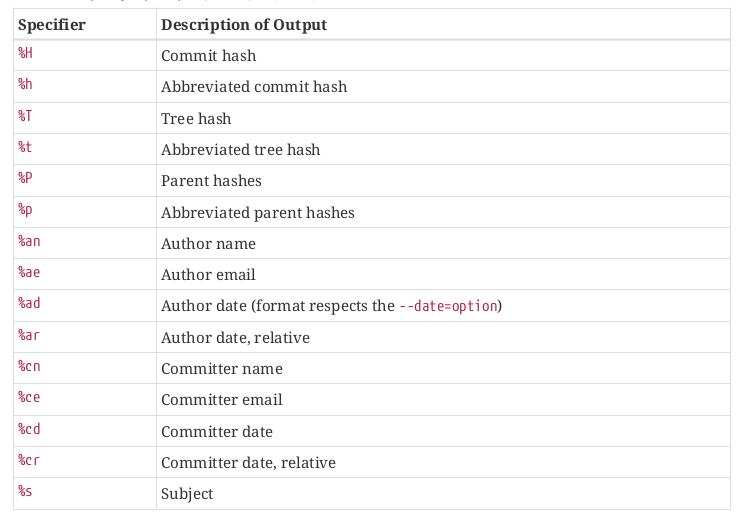
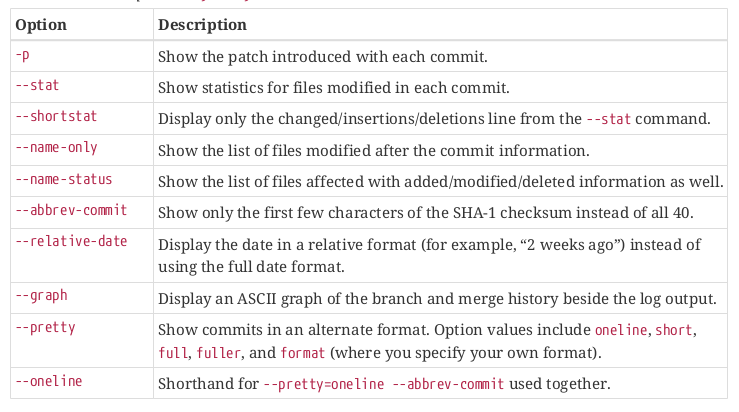
$ git log --since=20.minutes
Undoing things
At any stage, you may want to undo something. Here, we’ll review a few basic tools for undoing changes that you’ve made. Be careful, because you can’t always undo some of these undos. This is one of the few areas in Git where you may lose some work if you do it wrong.
git commit --amendUnstaging a Staged File
Add a file to work diectory
$ git add *

$ git status
On branch main
Your branch is up to date with 'origin/main'.

Changes to be committed:
  (use "git restore --staged <file>..." to unstage)
        new file:   LICENSE copy

$ git restore --staged "LICENSE copy"
NOTE: before version 2.23 was
git reset
Unmodifying a Modified File
make some changes on README.md
Revert changes with:
git checkout -- README.mdIt’s important to understand that git checkout —
fileis a dangerous command. Any local changes you made to that file are gone — Git just replaced that file with the last staged or committed version. Don’t ever use this command unless you absolutely know that you don’t want those unsaved local changes.
Git remote
$ git remote -v
origin  git@github.com:cfreire/git_course_example.git (fetch)
origin  git@github.com:cfreire/git_course_example.git (push)
Fetching and Pulling from Your Remotes
$ git fetch origin -v
Inspecting a Remote
$ git remote show origin
* remote origin
  Fetch URL: git@github.com:cfreire/git_course_example.git
  Push  URL: git@github.com:cfreire/git_course_example.git
  HEAD branch: main
  Remote branch:
    main tracked
  Local branch configured for 'git pull':
    main merges with remote main
  Local ref configured for 'git push':
    main pushes to main (up to date)
Add github repository for your project
- Create a github empty project (no readme)
then
git remote add github https://github.com/cfreire/Git_intro.git
git push -u github main
Renaming and Removing Remotes
$ git remote rename github origin
$ git remote -v
origin  https://github.com/cfreire/Git_intro.git (fetch)
origin  https://github.com/cfreire/Git_intro.git (push)
Tagging
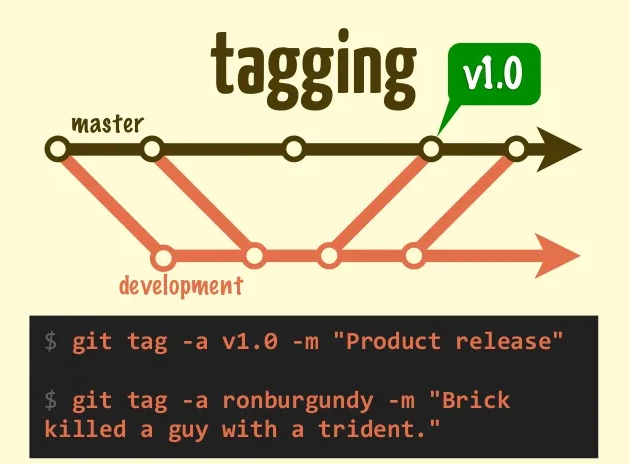
Git supports two types of tags: lightweight and annotated.
annotated
Annotated tags, are stored as full objects in the Git database
git tag -a v0.1 -m "First edition"
git tag
git show
Lightweight Tags
To create a lightweight tag, don’t supply any of the -a, -s, or -m options, just provide a tag name
git tag v0.2Sharing Tags
By default, the git push command doesn’t transfer tags to remote servers. You will have to explicitly
push tags to a shared server after you have created them. This process is just like sharing remote
branches — you can run git push origin tagname.
git push origin v0.1